

Monitors
A monitor watches your production traffic and opens an incident when a condition you care about is met. Each monitor has one alert, which watches a single signal or saved search with its own condition and severity. When the alert fires, Latitude records an incident and sends you a notification through your existing notification channels. Monitors live on the Monitors page of each project. Open it from the project sidebar.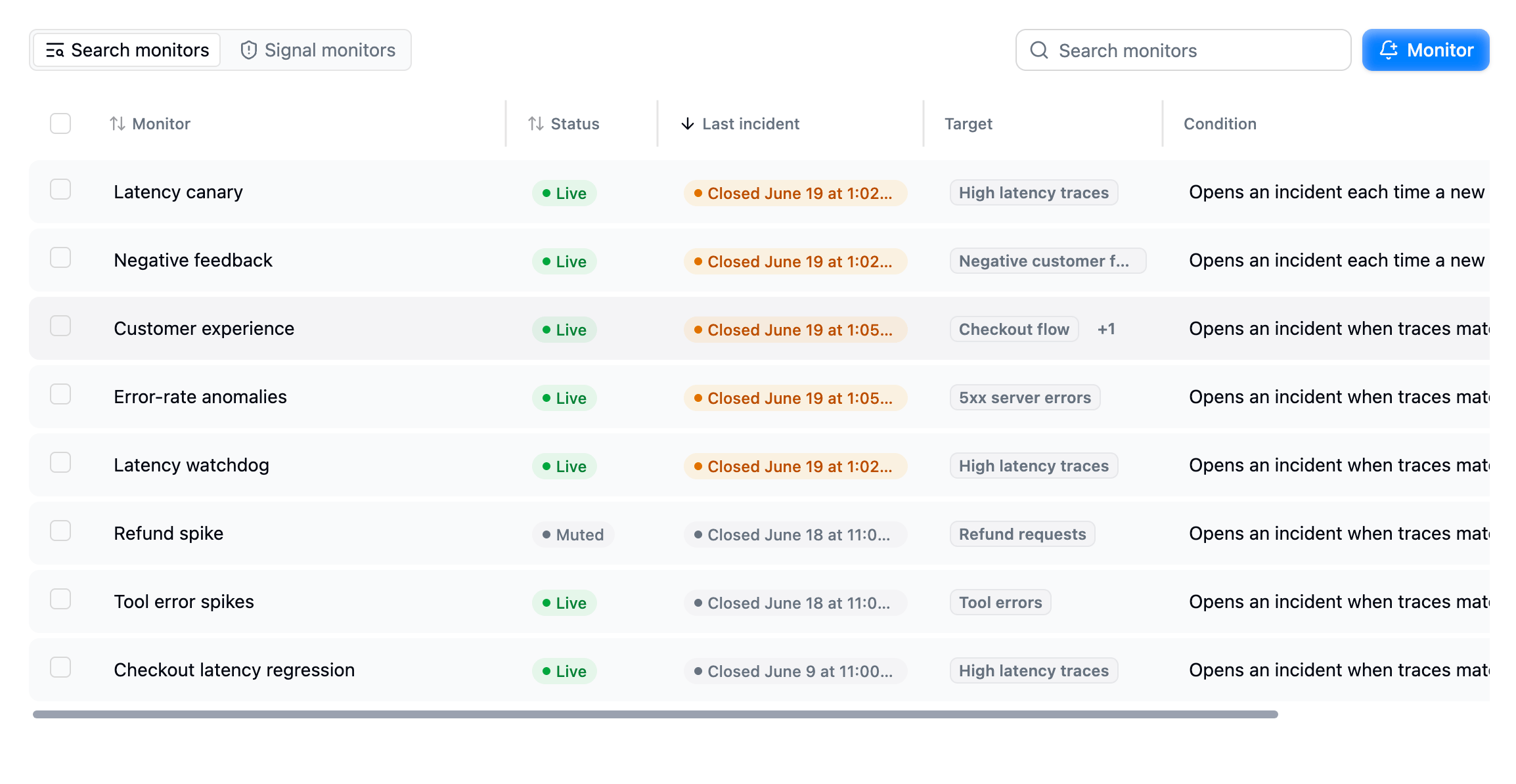
The Monitors page: system and user monitors side by side, each with its status, last incident, and a plain-English summary of its condition.
System monitors vs. your monitors
There are two kinds of monitors:- System monitors are set up automatically for every project. They watch your signals and are marked with a System badge. You can’t create, rename, or delete them, and you can’t change what they watch, but you can mute them.
- Your monitors are the ones you create. Today they watch saved searches. You have full control: edit the alert, rename, mute, and delete.

System monitors have a System badge next to their name.
The three system monitors
Every project comes with three monitors that watch the signal lifecycle. Each one notifies you about a different moment:- Signal discovered: fires each time a brand-new signal is detected in your traffic.
- Signal regressed: fires when a signal that had gone quiet starts being detected again, so a problem you thought was behind you doesn’t slip back unnoticed.
- Signal escalating: fires when an ongoing signal is being detected more than expected for this time of day and week. This is the one monitor with a tunable knob: its sensitivity (a value from 1 to 6) controls how large a deviation from the normal pattern is needed before it fires. Open the monitor and edit the alert to change it.
Creating a monitor for a saved search
You create your own monitors on top of saved searches. A saved search defines which traces you care about; the monitor decides when that pattern is worth an alert. There are two ways into the create flow:- From the Monitors page: click the Monitor button in the top-right and pick a saved search inside the form.
- From a saved search: open the Saved searches dropdown next to the search bar on the Traces page. Hover a saved search and click its bell icon for Create monitor (or View monitor if one already watches it), which opens the same form with that search pre-selected.
"literal" or backtick `phrase` terms — those match exactly, and the monitor counts every match.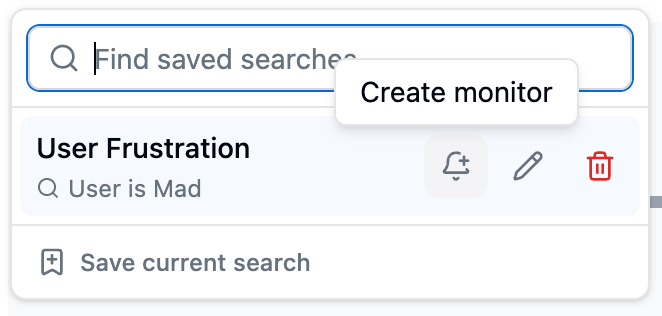
The Saved searches dropdown: hover a saved search and click the bell icon to create a monitor that watches it.
- Name: a human-readable label, e.g. “Tool error spikes”.
- Description: optional; what the monitor is for.
- An alert: a card where you pick the saved search, the alert kind, the condition, and a severity.
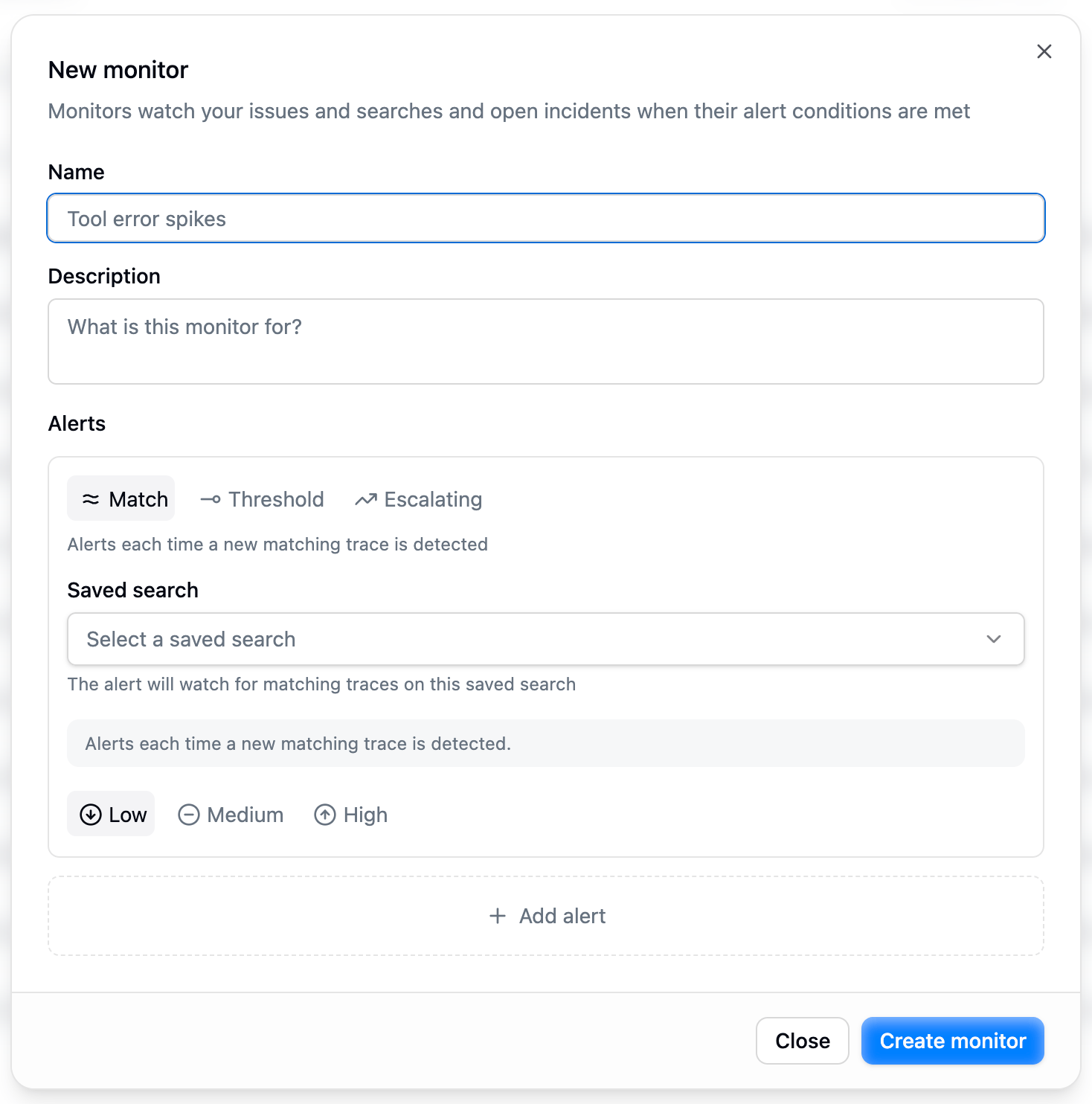
Create a monitor form: a name, an optional description, and the alert card. The preview sentence at the bottom of the card restates the configuration in plain English.
How monitors measure time
Every alert kind evaluates a sliding window of recent activity, and a session enters that window by its latest activity rather than by when it started. A session that has been running for 40 minutes is therefore checked while it progresses and again when it finishes, so long agent sessions alert instead of ageing out of the window before they end. Two things follow from that:- Each session alerts at most once per monitor. A session that stays active across several checks doesn’t re-alert, and a monitor can’t be flooded by one long session.
- An incident points back at the start of the session. The incident’s “started” time is when the offending session began, which can be well before the alert arrived.
The three saved-search alert kinds
A saved-search alert can watch its search in one of three ways, shown as tabs on the alert card: Match, Threshold, and Escalating.Match: alert when a matching session appears
Use Match when even one matching session is worth knowing about, for example a saved search forstatus = 5xx in production.
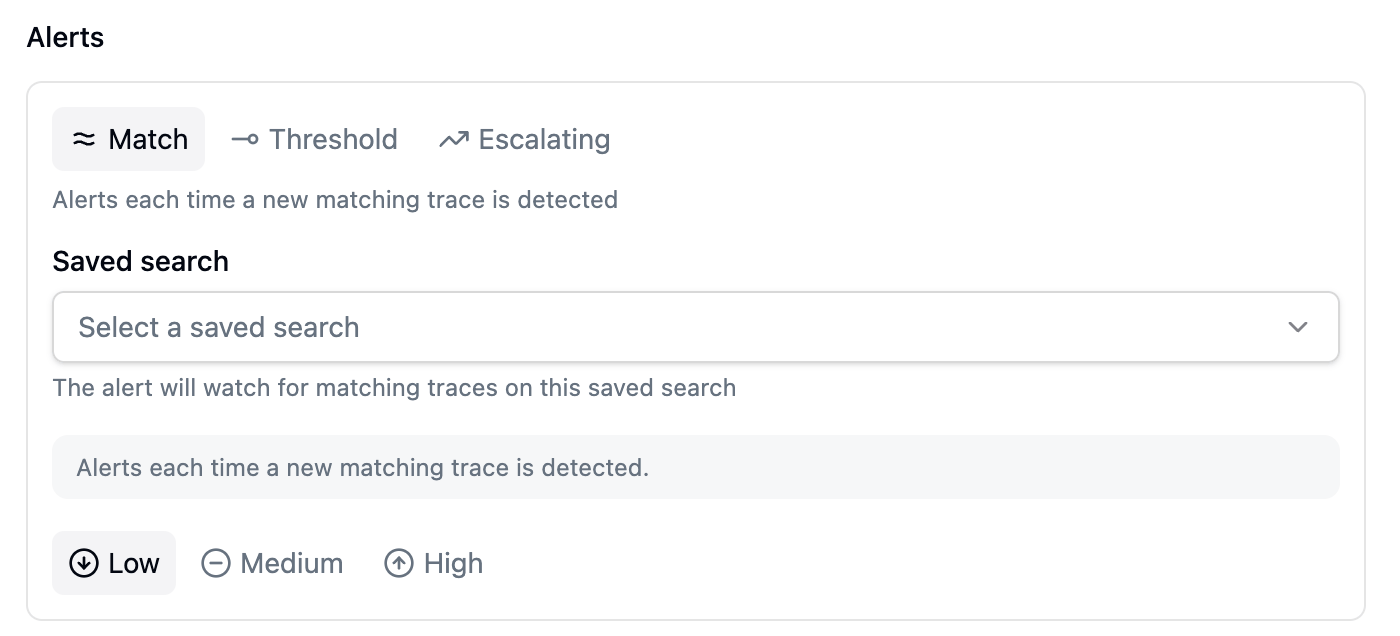
A Match alert card: pick the saved search to watch and a severity. It fires the first time each matching session is detected.
- A burst of 500 matching sessions arriving at once produces one alert, not 500.
- A single long session alerts once, at the first check that sees it, however long it keeps going.
- While new matching sessions keep appearing, you keep getting alerts, at most one every 5 minutes, so an ongoing problem stays visible instead of going quiet after the first alert.
- After a quiet period with no matches, the next new session opens a fresh alert again.
Threshold: alert at a milestone or a spike
Use Threshold when one match doesn’t matter, but a lot of them do. The threshold row reads as a sentence you complete: Alert when traces are detected … [amount] [comparison] [baseline]. There are three flavors.Absolute count
A simple count: alert once you’ve seen a set number of matching traces.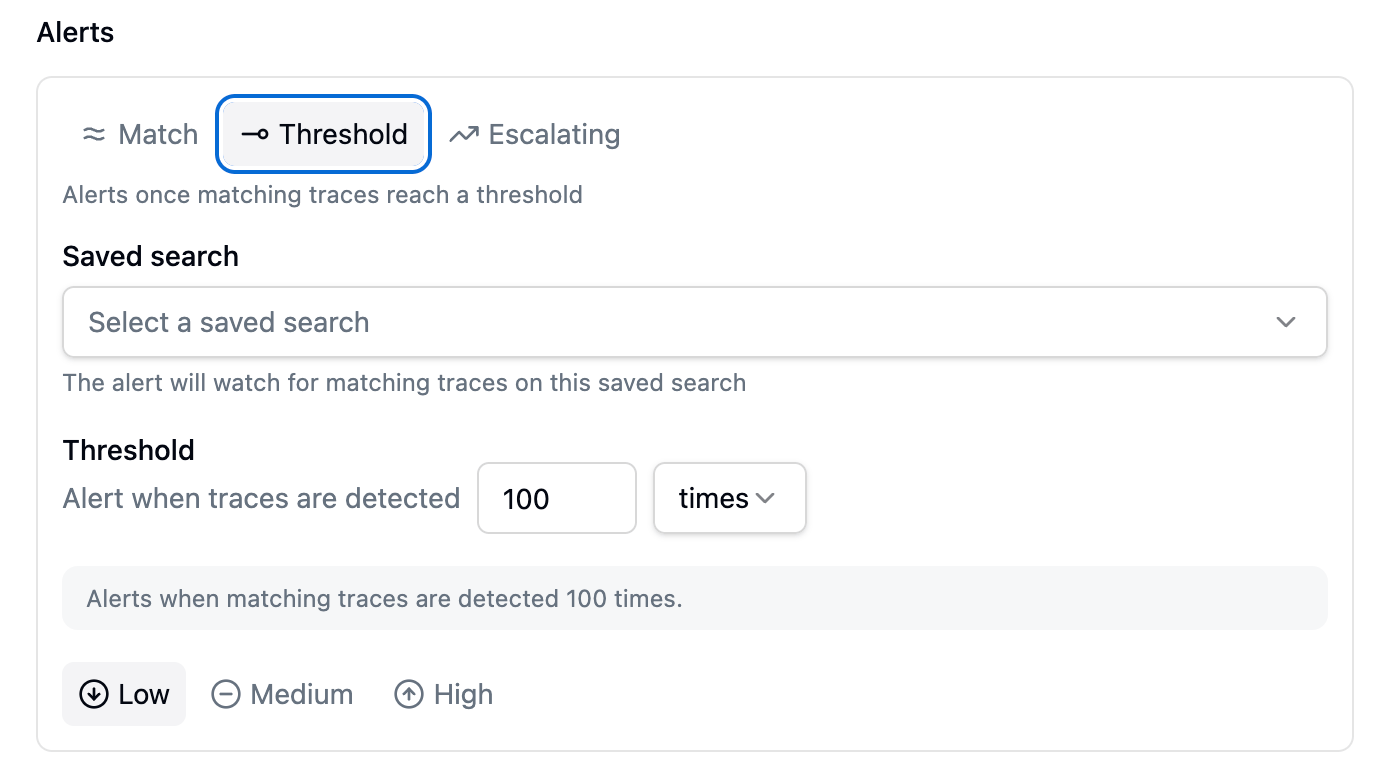
A Threshold alert card in absolute-count mode: the threshold row reads 'Alert when traces are detected 100 times'.
Multiplier: relative to a baseline
Spike detection: alert when the current volume rises to some multiple above a baseline you choose. Pick the comparison times more than and then choose the baseline:- The average of the last N hours/days: the normal-traffic case. Latitude divides the baseline window into 5-minute slices and compares the sessions active in your current slice against the average slice.
- The previous period (yesterday, or the previous week): for traffic that follows daily or weekly patterns, where “normal” depends on the day or time.
Expected: a baseline that learns your patterns
The smartest option: alert when you’re seeing more traffic than expected for this time of day and week. Unlike average or previous-period, you don’t pick a comparison window at all: Latitude learns what’s normal for each time of day and day of the week on its own.Escalating: alert only when a spike sticks around
Use Escalating when you want to ignore short blips that fix themselves, and only hear about a problem that sticks around. An escalating alert combines any of the threshold modes above with a window: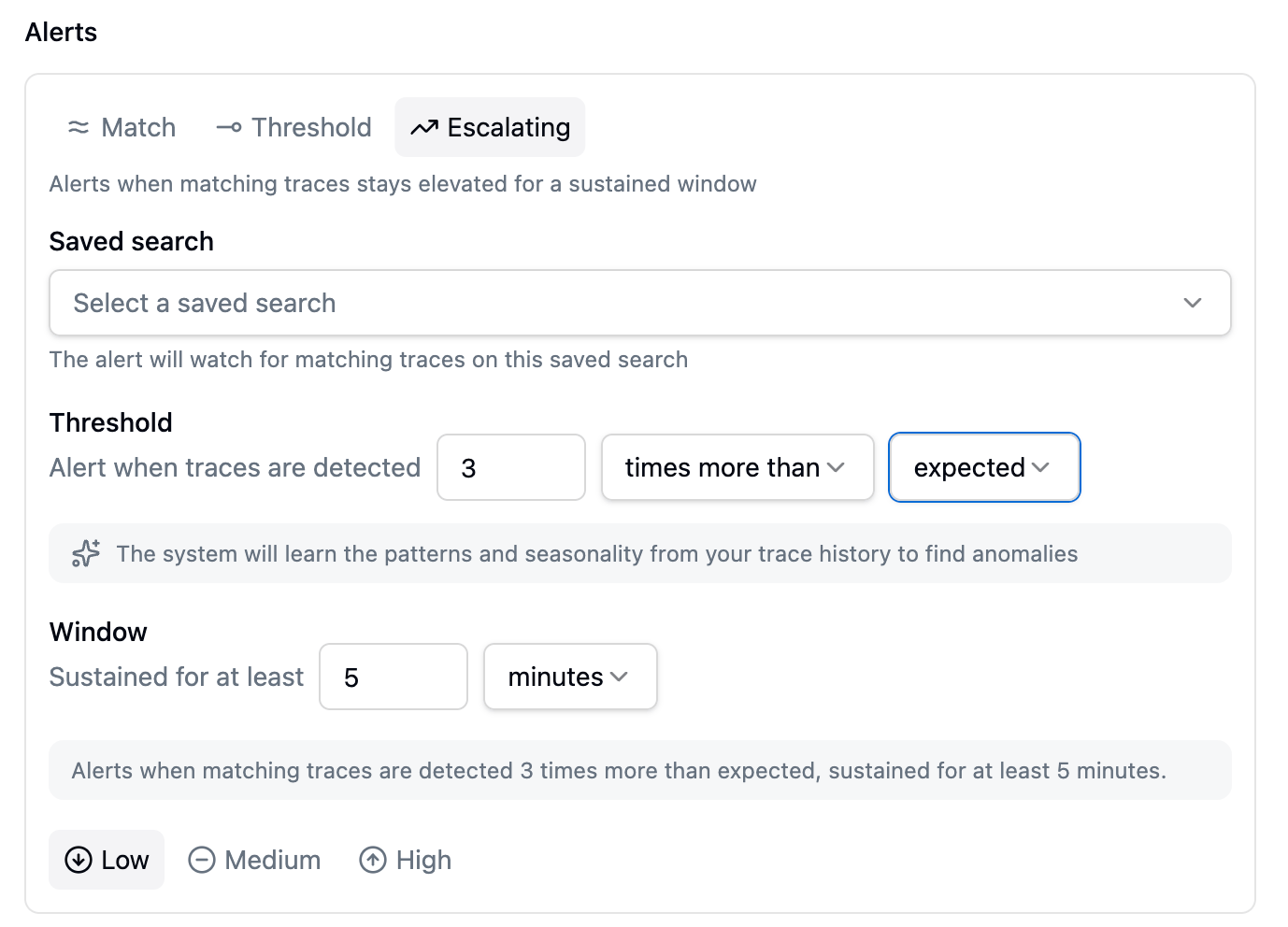
An Escalating alert in expected mode: 'detected 3 times more than expected', plus a Window that requires the condition to be sustained for at least 5 minutes.
- It’s the measurement window: the condition has to stay true for the whole window, not just for a moment. A single one-minute spike won’t trip it.
- It’s the cool-down: once an incident opens, it stays open until things have been calm for that same window, so it doesn’t rapidly open and close.
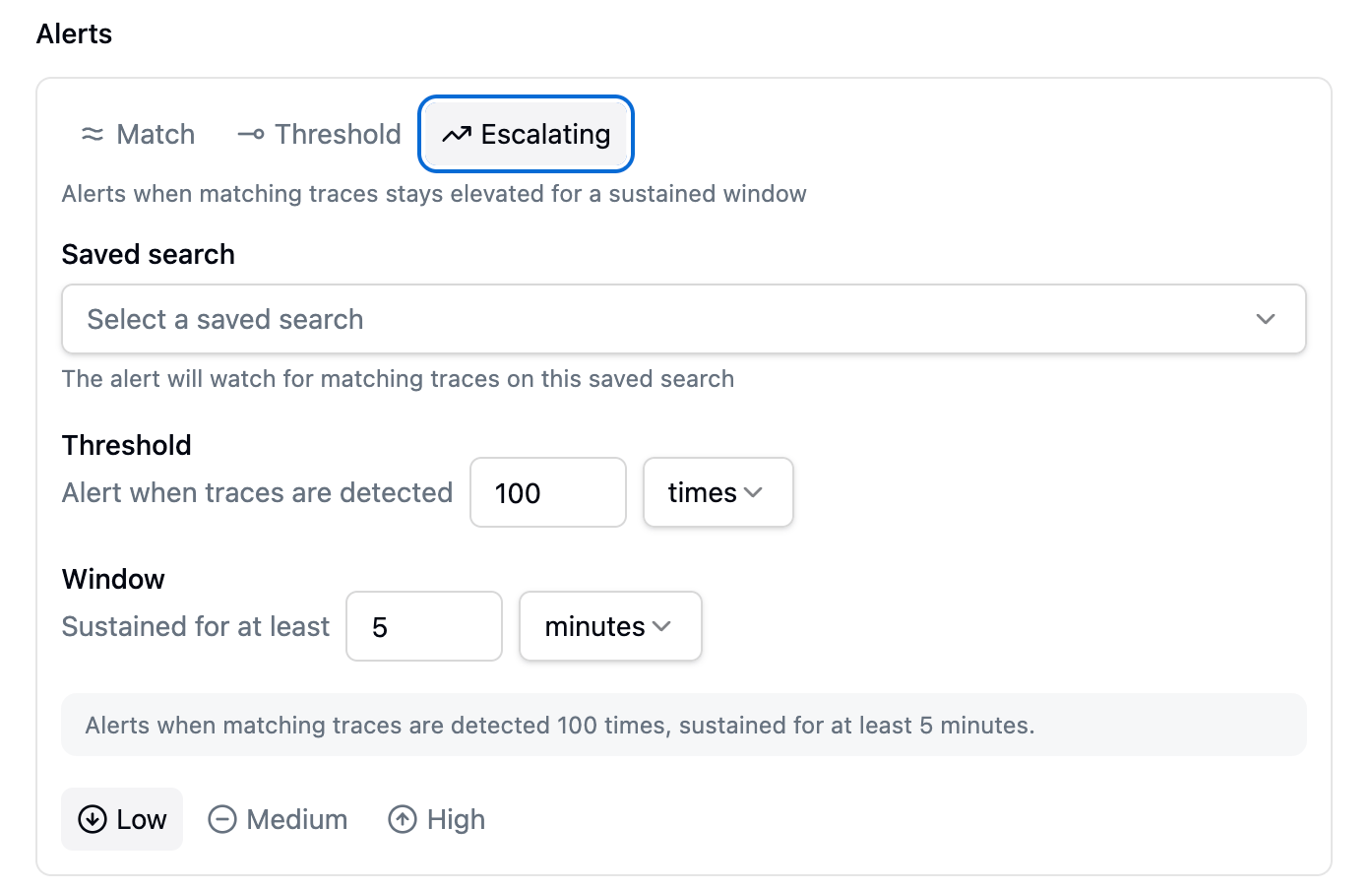
The same Escalating kind wrapping a plain absolute count: 'detected 100 times, sustained for at least 5 minutes'.
Mute, delete, and edit
Mute
Muting a monitor stops it from notifying you, but it keeps recording incidents. Open the monitor and use the Mute / Unmute button, or use the actions menu on the list row. Muting is the right tool for a monitor that’s correct but currently noisy: you keep the incident history for later, you just stop the notifications. A muted monitor shows the Muted status in the list; a live one shows Live.Delete
You can delete your own monitors from the list’s actions menu. A few rules:- System monitors can’t be deleted: mute them instead.
- A monitor keeps its alert for life — the alert can’t be removed on its own; it’s edited in place or deleted along with the monitor.
- Deleting a monitor stops it firing and hides it from the list. Incidents it already recorded remain queryable.
Edit
What’s editable depends on the monitor type:How notifications work
When a monitor fires, the incident goes through Latitude’s normal notification system, the same one used everywhere else. Monitors themselves don’t carry notification settings:- Who gets notified and on which channel is controlled by your per-user and per-project notification preferences, not by the monitor.
- A monitor’s only effect on delivery is its mute state: a muted monitor still records incidents but stops the notifications from going out.
Next steps
- Signals overview: what the system monitors watch
- Saved searches: the basis for your own monitors
- Search overview: building the queries your monitors watch