Documentation Index

Fetch the complete documentation index at: https://docs.latitude.so/llms.txt

Use this file to discover all available pages before exploring further.

Search

Search is how you find traces in Latitude. You describe what you’re looking for in plain language, and Latitude returns the most relevant traces in your project. When a search becomes a regular part of your workflow, you can save it so the whole team can come back to it.
Search page showing a list of saved searches with last found, assignee, annotated count, and total count

How Search Works

When you type into the search bar, Latitude compares your query against the conversations in every recent trace and returns the best matches. There are two ways to ask:
  • Search by meaning (default): Type a description in plain language and Latitude ranks traces by how close their conversation is to what you described. Paraphrases like “user complaining”, “failed payments”, or “long latency on signup” work even when the trace doesn’t contain those exact words.
  • Require specific words: Wrap a word or phrase in "quotes" to require it to appear in the trace. Multiple quoted phrases must all appear, but their order isn’t enforced.
You can mix the two — for example, "checkout" users abandoning cart requires the word checkout to appear and ranks the matches by how close they are to “users abandoning cart”.

What Search Looks At

Search indexes the user and assistant messages of every trace your project produces, plus the names of any tool calls that appear in the conversation. It deliberately ignores:
  • System prompts and instructions
  • Tool call results and payloads
  • Internal reasoning chunks
The goal is to keep search anchored to the conversation a human reviewer would read.

Index Freshness

Search covers your recent traces:
  • Word-based search keeps the most recent 90 days of traces searchable, regardless of plan.
  • Search by meaning follows your plan’s telemetry retention window:
    • Free: last 30 days
    • Pro: last 90 days
    • Enterprise: last 1 year
Once a trace falls out of the search index it stays visible in the Traces page and everywhere else in the product — only search stops surfacing it. The Search page lives in the left navigation of every project.
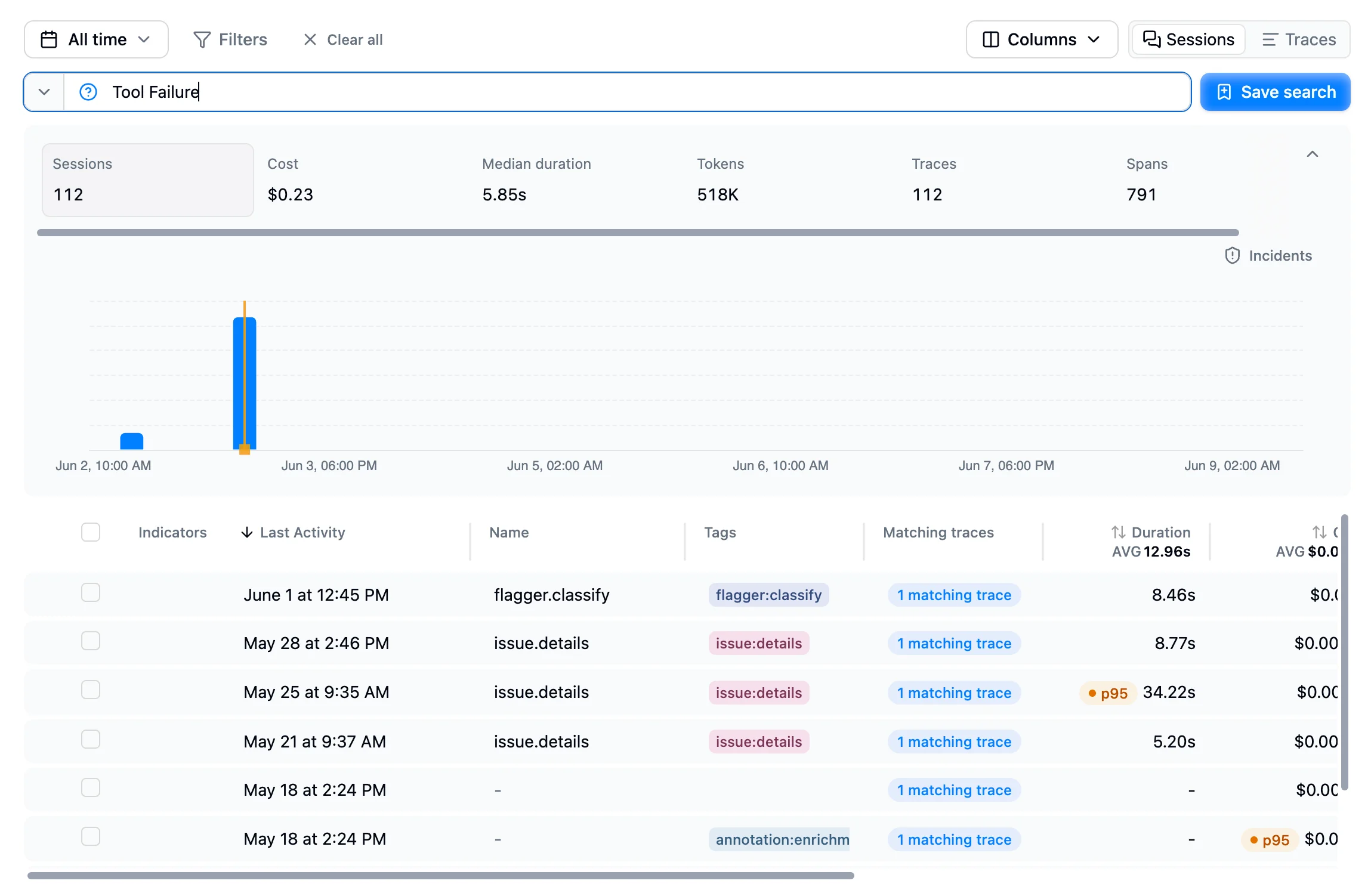
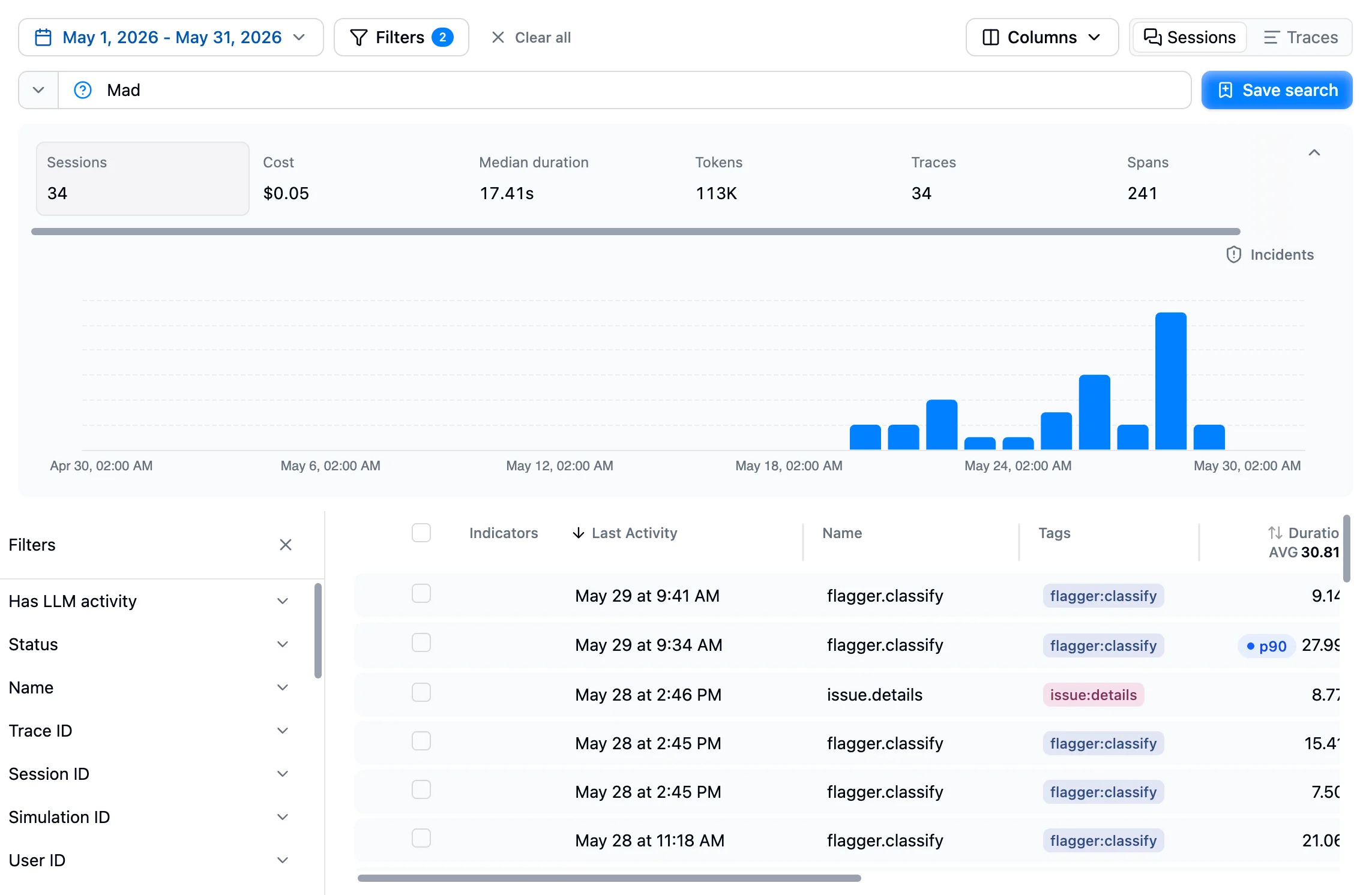
Search results showing traces ordered by relevance with filters and column controls
  1. Type your query in the search bar and press Enter. Use "quotes" to require specific words.
  2. Add filters to narrow further. The same shared filter system used everywhere else in Latitude applies here. Filter by status, model, cost, duration, tags, custom metadata, and more.
  3. Pick a time range with the time filter dropdown if you only care about a recent window.
  4. Sort, scroll, and open matching traces. When you search by meaning, results are ordered by relevance. When your query is only quoted words, results fall back to the usual chronological order and the column headers control the sort.
Each trace row shows the same metadata you’d see on the Traces page. Clicking a row opens the full trace detail, including conversation, spans, scores, and the annotation panel.

Combining Search and Filters

Search and filters are complementary:
  • The search query finds traces whose conversation content is relevant.
  • The filters scope to traces whose metadata matches.
You can do either, neither, or both. With both active, a trace must satisfy the filters and rank against the query to appear.

Bulk Actions on Results

When you select one or more traces from a result set, two actions become available:
  • Export traces: Download the matching traces as a file. You’ll get an email when the export is ready.
  • Add to dataset: Push the matching traces into a dataset for offline analysis, regression suites, or simulations.
These actions respect the active query and filters, so you can build up a precise cohort with search and then operate on it as a group. When a query plus filters becomes something you want to come back to, save it.
  1. Run the search.
  2. Click Save search in the toolbar.
  3. Give it a name like “Failed payments last week” or “Long latency on signup”.
The saved search appears in the table on the Search landing page along with everyone else’s. See Saved Searches for the full lifecycle, including assignment, renaming, and detecting drift between a saved search and its current state.

Empty Results

If a search returns nothing, the most useful adjustments are usually:
  • Reword the query: Close paraphrases often work — try a different framing of the same intent.
  • Drop the quotes: A quoted phrase has to appear word-for-word. Removing the quotes lets Latitude rank by meaning instead.
  • Use fewer or more specific keywords: A vague single word can return too many noisy matches; an over-specific phrase can return none.
  • Widen filters: A status filter or tight time range can hide otherwise good matches.
  • Check the time window: Word-based search only covers the last 90 days. Search by meaning is bounded by your plan’s telemetry retention (30 days on Free, 90 days on Pro, 1 year on Enterprise).

Search and the Rest of Latitude

FeatureRelationship
Saved searchesBookmark a query plus filters so the whole team can revisit it later
FlaggersAutomatic annotators that surface common failure categories; search lets you build your own cohorts around anything else
Inline annotationsOnce you open a trace from a search result, you can annotate it directly

Next Steps

  • Saved Searches: Keep useful searches around and assign ownership
  • Flaggers: Automatic detection of common failure categories
  • Inline Annotations: Leave human feedback on traces you find through search
  • Filters: The shared filter system that powers search and beyond